Getting started
Open a picker, then work from the keyboard.
NanoClip lives in the menu bar. Use its global shortcuts to open the right picker, type to search, use the arrow keys to select an item, and press Return to paste or run it. Open Settings from the menu-bar icon whenever you need to change behavior.
- Clipboard: ⌃⌘V opens everything you copied.
- Snippets: ⌃⌘S opens reusable text and images.
- Flows: ⌃⌘F opens compatible automations.
- Emoji: ⌃⌘E opens the searchable emoji picker.
Clipboard history & queue
Clipboard history
NanoClip keeps text, rich text, images and GIFs, file URLs, code, colors, and copied links. Each entry can show its source app, time, content type, and—where available—a link preview. Search looks through text, file names, previews, and the app that supplied the item.
Search history
Open Clipboard with ⌃⌘V, then start typing. NanoClip filters immediately as you type, including matching text content, file names, previews, source bundle IDs, and app names. Press Escape once to clear the search; press it again to close the picker.
- Paste or copy: Return pastes into your previous app; ⌘Return copies without pasting.
- Preview: use Right and Left to open or close the selected item’s preview.
- Organize: pin important items with ⌘P; they stay at the top and are protected from automatic cleanup. Use category filters to narrow a busy history.
- Keep sensitive copies discreet: use ⌘H to obfuscate an item’s preview. You can also set whole apps to be obfuscated in Settings.
- Work with links and files: ⌘O opens a selected URL or file; ⌘⇧Return copies a selected file’s path.
- Clean up: edit selected text with ⌘E, delete with ⌘Delete, or clear the whole history from the menu-bar menu. Optional quick actions surface useful transformations for the selected item.
Paste queue
A paste queue lets you stage multiple clipboard items, then paste them one at a time in order. In Clipboard, select an item and press⌘A to add or remove it. Use ⌃⇧⌘V to paste the next item in supported builds.
Snippets & emoji
Snippets
Snippets are saved text or images you can paste on demand. Give one a name, optional keyword, icon, tags, and pin state. Open them with⌃⌘S, search by name or tag, and press Return to paste.
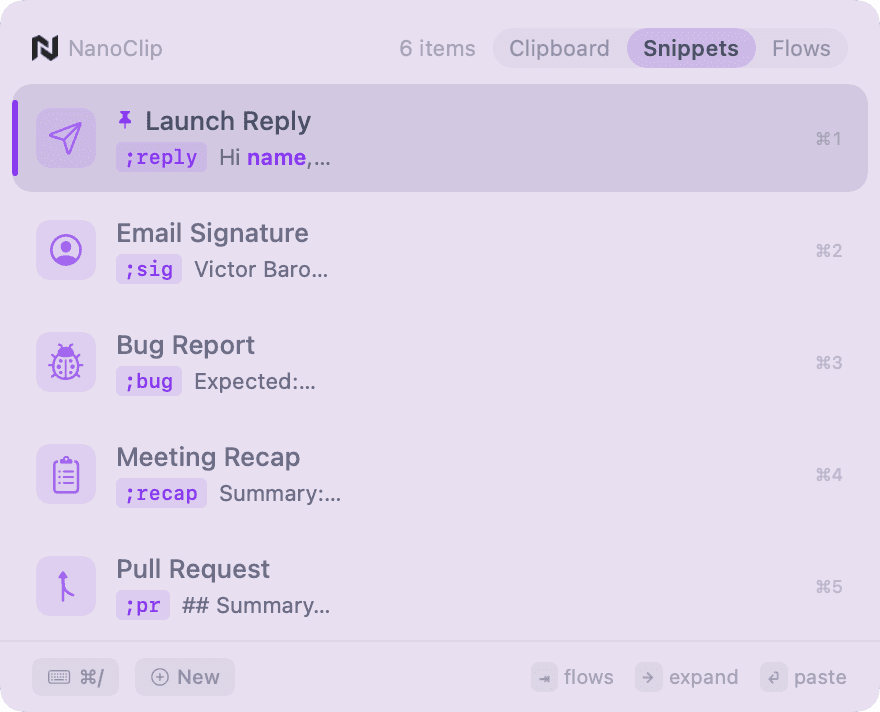
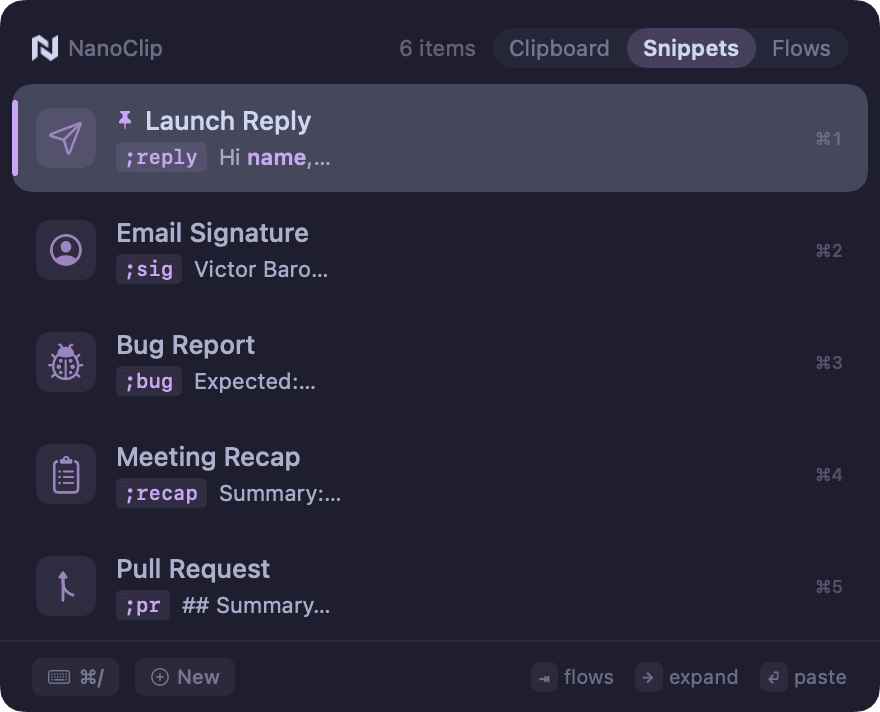
Create and use a snippet
- From Clipboard, select text or an image and press ⌘N to prefill a new snippet. Or open Snippets and press ⌘N to start empty.
- Add a name, content, optional keyword, icon, and tags. Pins keep a snippet at the top of the picker.
- Press Return on a saved snippet to paste it. Press ⌘Return to copy its expanded content without pasting.
- Edit with ⌘E, reorder with ⌥⌘↑ or ⌥⌘↓, and delete with ⌘Delete.
Placeholders and arguments
Placeholders make a snippet dynamic at the moment you insert it. Add them directly to a text snippet.
- {clipboard}
- Inserts current clipboard text.
- {date}, {time}, {datetime}, {weekday}
- Insert the current date or time. Use {date format="yyyy-MM-dd"} for a custom date format.
- {cursor}
- Places the cursor at that point after NanoClip pastes the expanded text.
- {argument name="recipient"}
- Shows a form before paste so you can enter a value. Use more than one argument for multi-field templates.
- Another snippet
- Reference another snippet by keyword through the placeholder engine.
Tags, keywords, and portability
- Use tags to organize snippets without folders. Search #support reply to combine a tag and regular text search; Settings can group the picker by tag.
- Direct-distribution builds can expand a typed keyword when Input Monitoring and Accessibility access are granted. Mac App Store builds use the picker instead.
- Settings → Snippets imports NanoClip JSON, Alfred, Raycast, and Rocket Typist libraries, and can export all snippets.
Emoji picker
Press ⌃⌘E to open NanoClip’s searchable emoji picker. Find an emoji by name or category, browse frequently used and favorite items, and paste the selected emoji into the app you were using.
Run a Flow
Flows
A Flow is a small pipeline: one input passes through compatible blocks, then NanoClip shows the result before you copy or paste it. Start from the Flows tab with ⌃⌘F, or select a clipboard item and press ⌘Right to choose a compatible Flow.
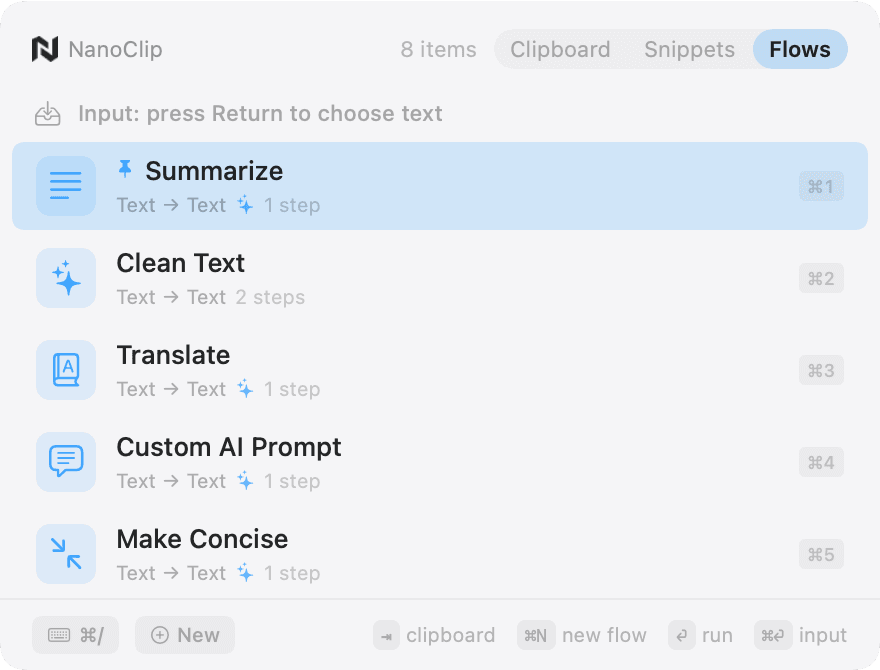
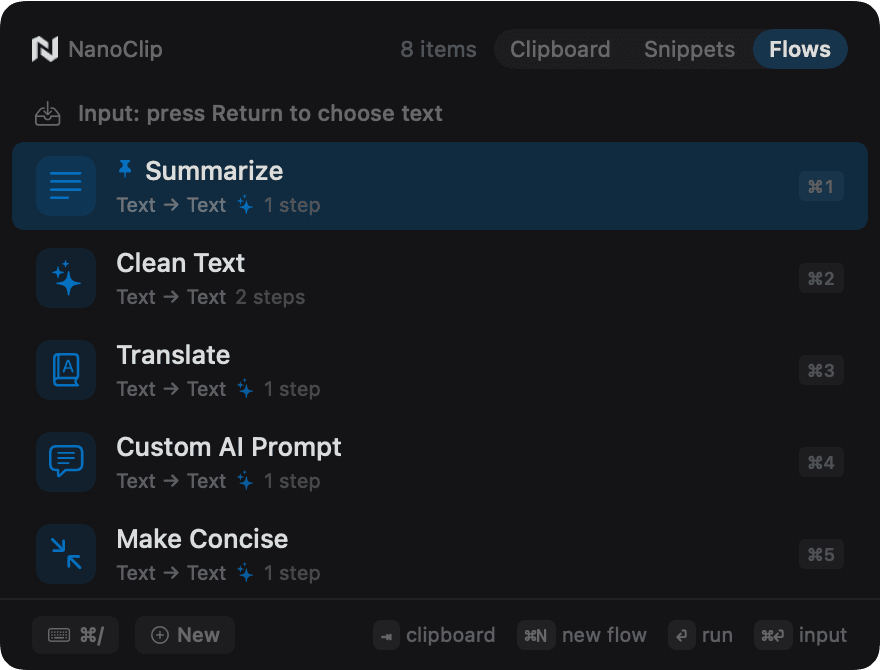
Run a Flow
You can also use ⌘Return in Flows to provide explicit input: text and URLs open an input panel; image and file Flows open a file picker. A Flow can have its own global shortcut, and parameters marked “Ask on Run” are collected just before it runs.
Available blocks
- Text
- Uppercase, Lowercase, Capitalize Words, Trim Whitespace, Strip Formatting, Correct Spelling (English), Find & Replace, Sort Lines, Dedupe Lines, JSON Pretty-print, Date Format, Regex Extract Matches, URL Encode, and URL Decode. Direct builds also include Run Bash Command.
- Image
- Convert Format, Resize, Compress, Rotate Image, and Image → Text (OCR).
- URL
- Strip Tracking Params, Fetch Web Page Title, Extract Web Page Text (Basic), Download Page Images, and QR Code.
- AI text
- Summarize, Extract Key Points, Rewrite, Translate, and Custom Prompt.
- AI image
- Generate Image, Edit Image with Prompt, Enhance / Upscale Image, and Describe Image.
Create a custom Flow
Build one chain at a time.
Creating and editing custom Flows is a Pro feature. NanoClip only offers blocks that are compatible with the output of the prior step, so you can build without guessing which combinations work.
- Open Flows with ⌃⌘F, then press ⌘N. To change an existing Flow, select it and press ⌘E.
- Name it and choose an icon. Add a per-Flow global shortcut if you want to run it without opening NanoClip first.
- Add the first block. Its input type defines what the Flow can accept: text, URL, image, file, or a compatible array.
- Add the next compatible blocks. Select a step to set its parameters. Turn on Ask on Run for values you want NanoClip to request every time.
- Run and inspect. Press Return on the Flow, pick an item if prompted, then select any result in the results panel to copy or paste it.
Use current clipboard input
From Clipboard, select an item and press ⌘Right. NanoClip moves to Flows and filters the list to compatible choices.
Provide a new input
In Flows, press ⌘Return. Text and URL Flows open a text field; image and file Flows open a file picker.
Sync & iPhone/iPad
Keep recent clips and snippets with you.
With Pro and iCloud Sync enabled, NanoClip syncs clipboard history and snippets through your private iCloud account. Turn it on in Settings → General, then use Sync Now if you want an immediate refresh. You can choose whether full images are included in sync.
On your Mac
Sign into the same Apple Account on each device, enable iCloud Sync, and leave NanoClip a moment to finish its first transfer. If sync is unavailable, confirm iCloud is active on the Mac and check the status message in Settings.
On iPhone & iPad
The public companion app provides synced clipboard items and snippets, editing and pinning, share import, and a NanoClip keyboard.
Install NanoClip from the App Store. It requires NanoClip 1.5 or later on your Mac and the same Apple Account. Add its keyboard in iOS Settings → General → Keyboard → Keyboards, allow Full Access, then switch keyboards with the globe key. Full Access lets the keyboard read NanoClip’s local cache; it does not transmit what you type. Flows remain a Mac feature.
Complete settings reference
Settings reference
Open Settings from the menu-bar icon. The exact choices vary with your edition and plan, but this reference lists every setting group in the current Mac app.
- General → Picker
- Preview style (inline or side panel), keep side panel open, picker animations, quick actions, and reset picker size/position.
- General → General
- Launch at login, sound effects, menu-bar icon, automatic deletion, and history size (100, 500, 1,000, or unlimited).
- General → Copy Stack
- Build a stack with ⌘C, choose a separator, and choose whether adding an item plays a sound.
- General → Hotkeys
- Change the Clipboard, Snippets, Flows, Emoji, and supported Paste Queue shortcuts.
- General → Capture & sync
- Ignored apps, obfuscated apps, iCloud Sync, image sync, Sync Now, and Sync status/error details.
- iPhone & iPad companion
- Install the public companion app from the App Store, then sync with the same Apple Account used on your Mac.
- Appearance
- Theme, app appearance mode, picker font and font size, plus the available premium theme and font choices.
- Snippets
- Group snippets by tag, expand at the end of words, and import or export your library.
- Flows
- Restore starter Flows; add/test provider keys; choose default text, image generation, editing, upscale, and description models; save image output automatically and choose its folder.
- Stats
- Review activity, streaks, top apps, content types, and Flow usage.
- Upgrade / License
- Compare Free and Pro in the Upgrade tab. Direct-distribution builds also have a License tab for activating, deactivating, and checking a license.
Permissions and privacy
- Accessibility: allows NanoClip to paste an item back into the app you were using. Without it, NanoClip can still copy content to the system clipboard.
- Input Monitoring: used by typed snippet keyword expansion in direct-distribution builds. The App Store build uses picker insertion instead.
- Local by default: clipboard history stays on your Mac unless you turn on iCloud Sync. Ignored apps prevent capture; obfuscated apps hide content previews.
- Deletion is permanent: clearing history deletes stored items and images. With iCloud Sync enabled, the deletion is also synchronized.
Copy Stack
Enable Copy Stack in Settings → General to collect several text items into one value. In Clipboard, press ⌘C on each text item in the order you want. Return pastes the assembled stack, while Escape leaves it on the clipboard for a normal ⌘V. Choose the separator and optional feedback sound in the same setting.
Shortcut reference
All default keyboard shortcuts.
Type printable characters to search in every picker. In a detail preview, use Right to expand, Left to collapse, and ⌘↑ or ⌘↓ to scroll long content. On Spanish keyboard layouts, ⌘- can open the shortcuts panel when ⌘/ is unavailable.
Open NanoClip
- Clipboard
- ⌃⌘V
- Snippets
- ⌃⌘S
- Flows
- ⌃⌘F
- Emoji picker
- ⌃⌘E
- Paste next from queue
- ⌃⇧⌘V
Every picker
- Move selection
- ↑ / ↓
- Next / previous tab
- Tab / ⇧Tab
- Paste/run a visible item
- ⌘1–⌘9
- Run a visible quick action
- ⌥1–⌥9
- Show shortcuts
- ⌘/
- Clear search / close
- Escape
Clipboard
- Paste / copy selected item
- Return / ⌘Return
- Create a snippet / edit text
- ⌘N / ⌘E
- Run with a Flow
- ⌘Right
- Pin / queue / hide
- ⌘P / ⌘A / ⌘H
- Open URL or file / copy path
- ⌘O / ⌘⇧Return
- Delete / expand preview
- ⌘Delete / Right
Snippets
- Paste / copy expansion
- Return / ⌘Return
- New / edit / pin
- ⌘N / ⌘E / ⌘P
- Reorder
- ⌥⌘↑ / ⌥⌘↓
- Cycle tag sections
- ⌘[ / ⌘]
- Delete / expand preview
- ⌘Delete / Right
- Scroll expanded content
- ⌘↑ / ⌘↓
Flows & emoji
- Run / provide explicit Flow input
- Return / ⌘Return
- New / edit / pin a Flow
- ⌘N / ⌘E / ⌘P
- Reorder / delete a Flow
- ⌥⌘↑ / ⌥⌘↓ / ⌘Delete
- Paste selected emoji
- Return
- Favorite selected emoji
- ⌘F
- Browse emoji grid
- Arrows
Plans & useful limits
Know which version you are using.
NanoClip has a free tier and a Pro upgrade. The free tier covers the core experience with clipboard history, three snippets, the default appearance, and the emoji picker. Clipboard history has no paid item limit; you can choose its size and auto-delete interval in Settings. Pro unlocks unlimited snippets, all starter and custom Flows, paste queue and pins, iCloud Sync, custom themes and fonts, sensitive-content obfuscation, and provider-backed features. Check the current comparison on the NanoClip page.
- Flows never paste silently. Review the results panel, then paste or copy the output you want.
- Flows accept only compatible input. An image Flow needs an image or image file; a URL Flow accepts a URL or URL-like text.
- Snippets and Flows are separate: a snippet cannot directly attach to or trigger a Flow.
- Raw-data input is not available in Flows. Run Bash Command is direct-distribution only.
- Apple Intelligence needs compatible macOS hardware and software. Cloud AI requires a configured provider and API key.